
ArcaneDesk Startup Guide
First time with ArcaneDesk? Follow these nine steps from downloading FVTT to entering the demo world.
0. Download FVTT (Release 13)
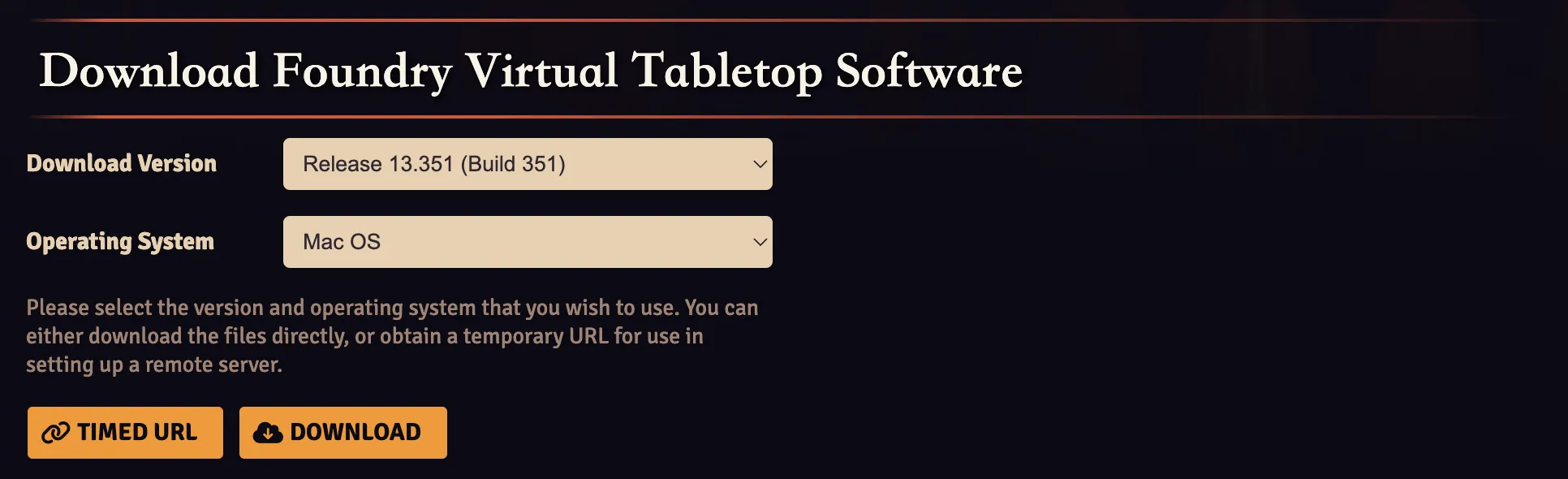
On the Foundry download page, make sure Download Version is set to a Release 13.x version (ArcaneDesk currently supports the 13 series only), and select your operating system. Then either:
- Click TIMED URL to copy the temporary download link and send it straight to ArcaneDesk, letting it download and install for you;
- or click DOWNLOAD to download the installer yourself, then tell ArcaneDesk where the downloaded file is.
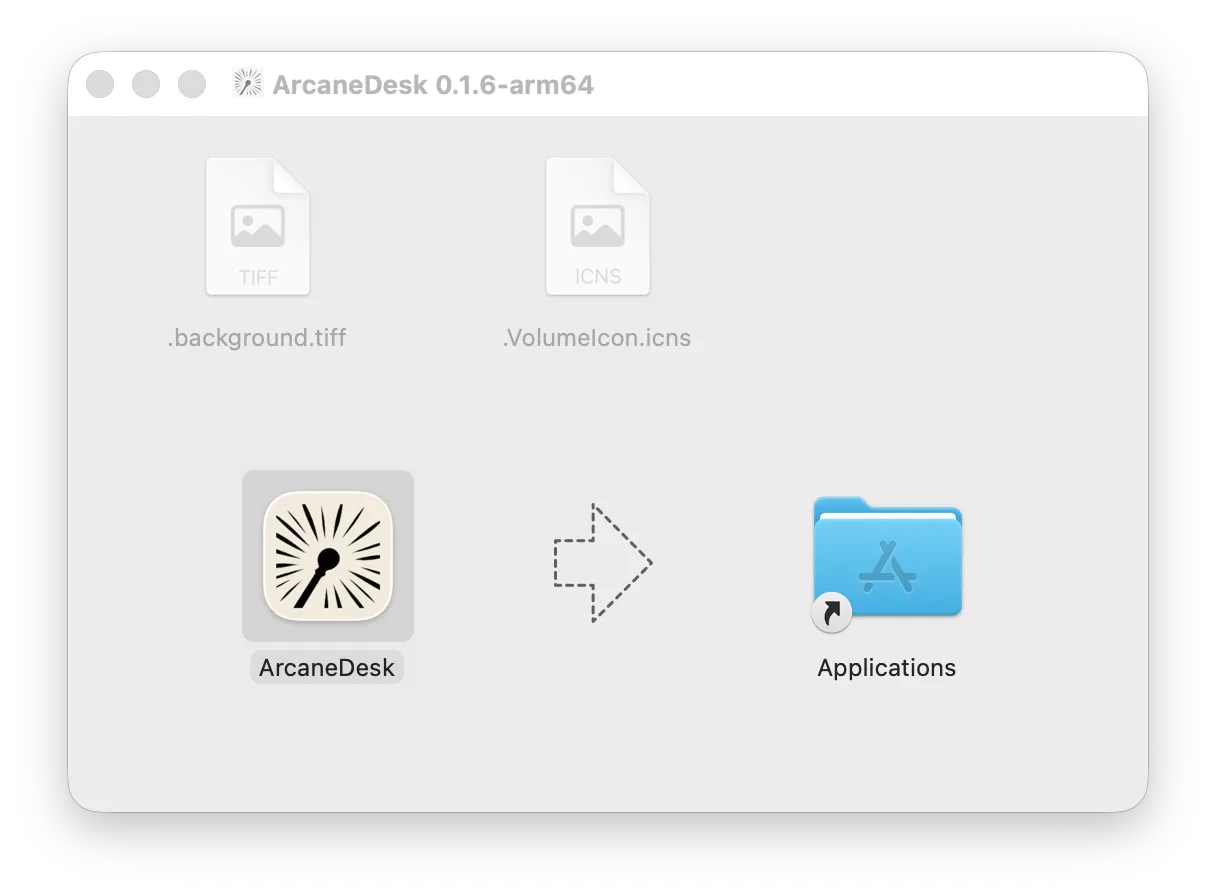
1. Install and open ArcaneDesk (macOS)
Open the downloaded DMG and drag ArcaneDesk into Applications.
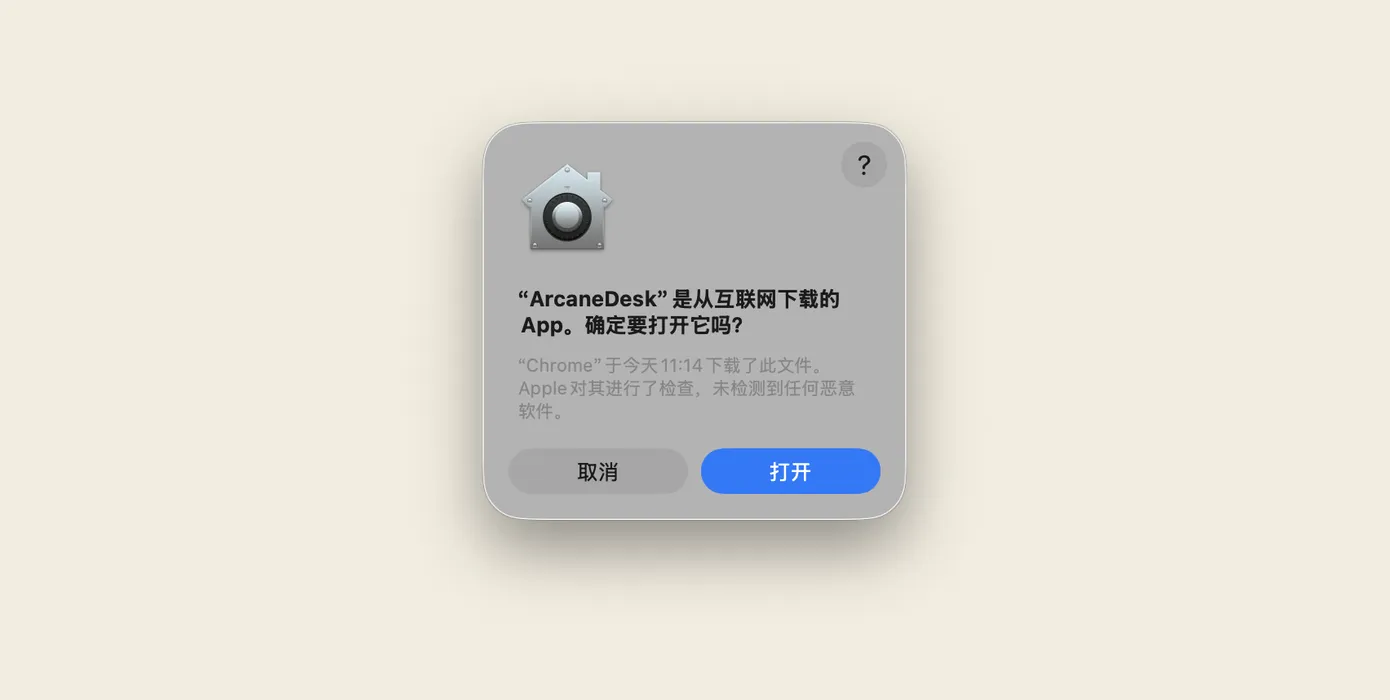
ArcaneDesk is signed and notarized with Apple. On first launch macOS asks “‘ArcaneDesk’ is an app downloaded from the internet. Are you sure you want to open it?” — just click Open. (The screenshot shows a Chinese-language macOS; the layout and button positions are identical.)
Windows shows no such prompt — open the app directly after installing.
2. Open the app
After installation, open the app. It starts in Prep mode by default.
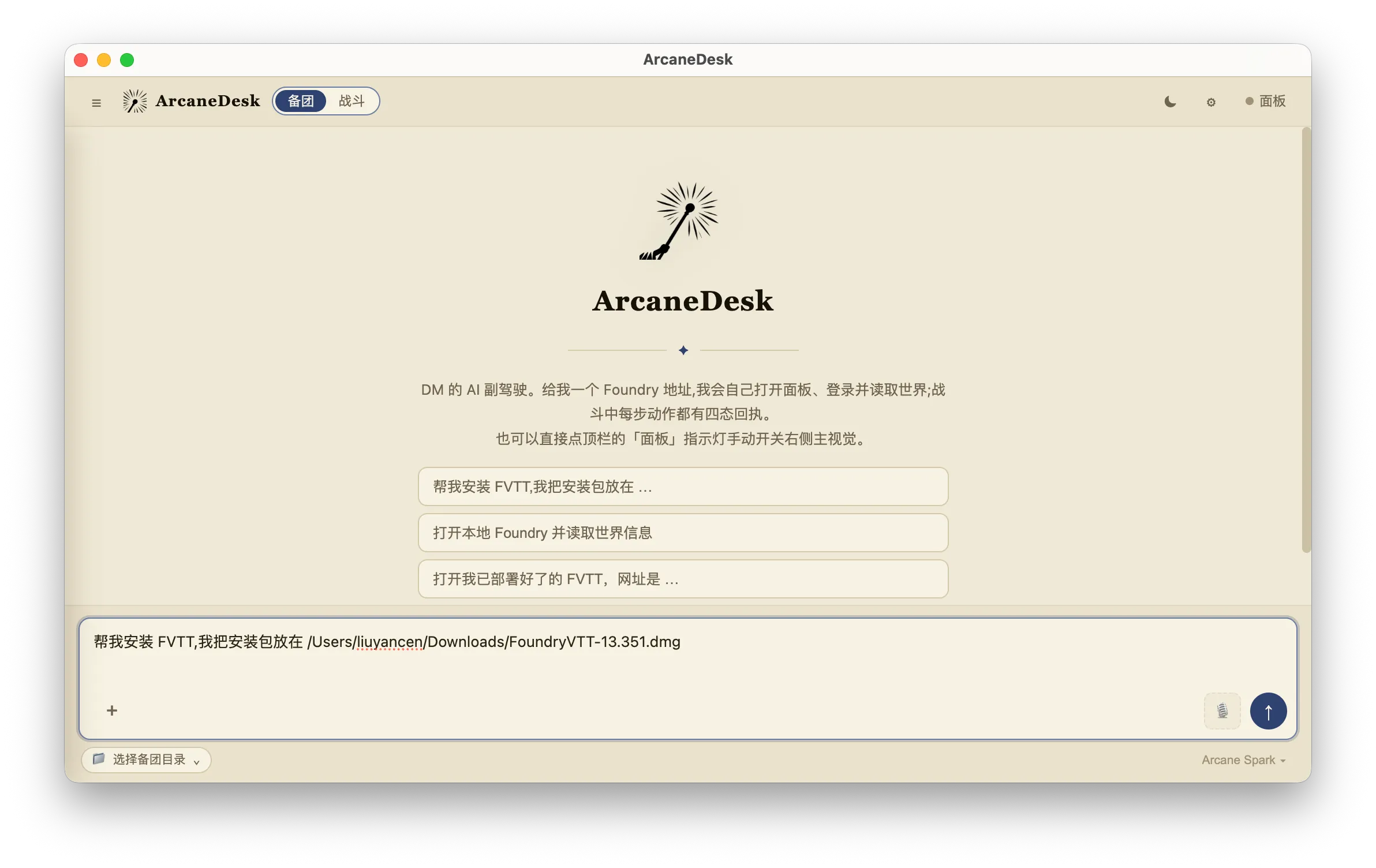
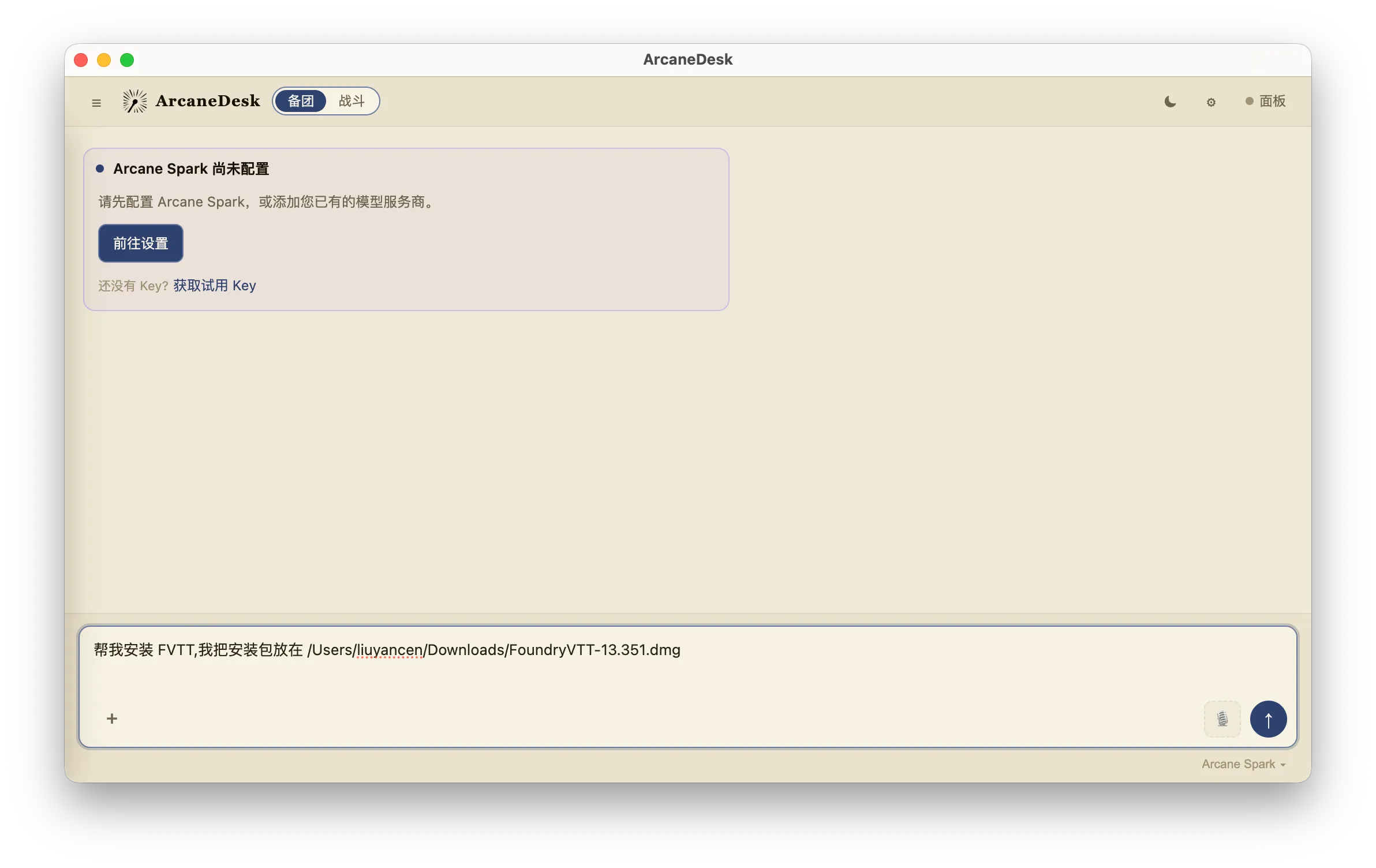
3. Type anything
Once you type a message, you are taken to the key setup screen.
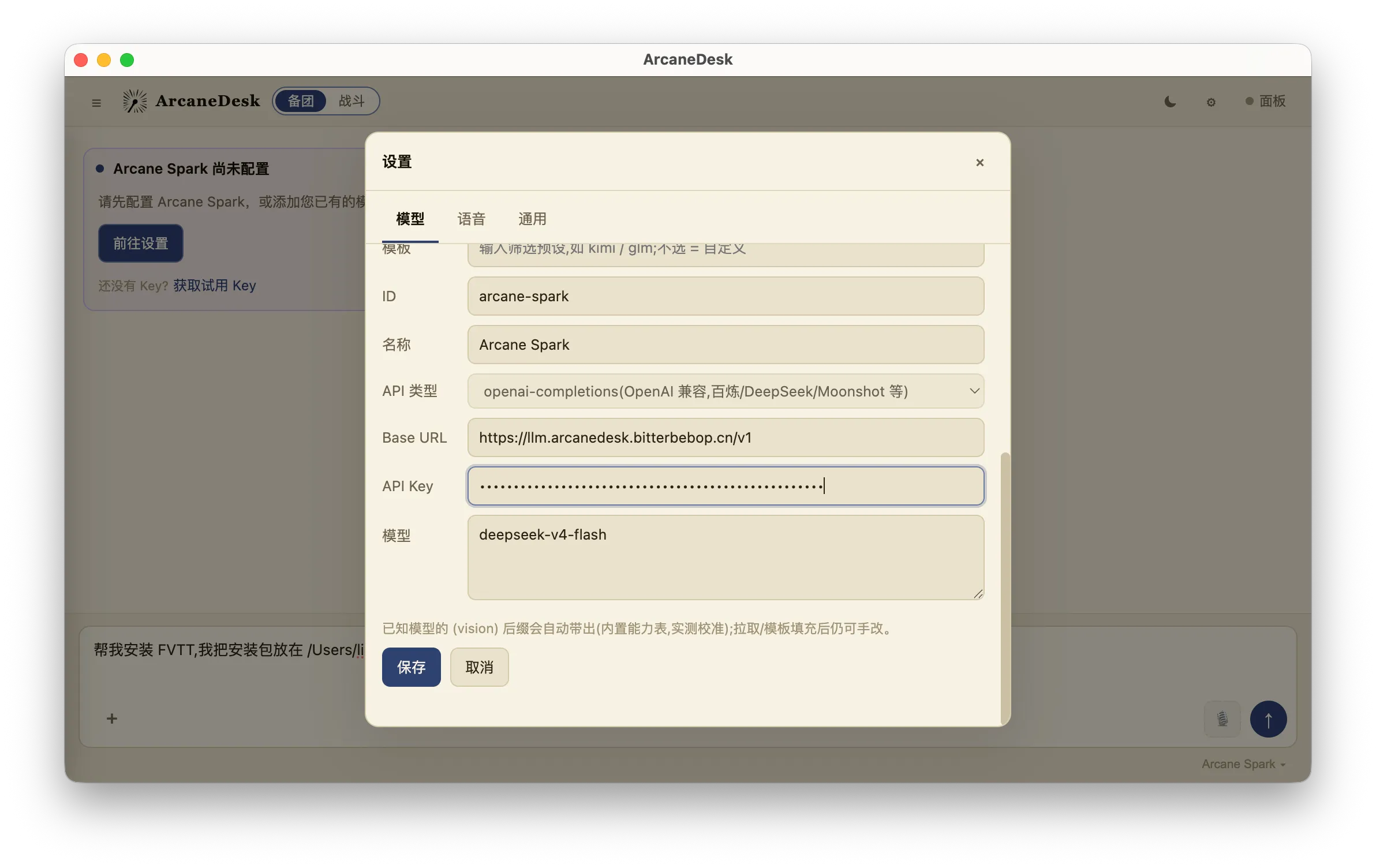
4. Enter your Arcane Spark key
Fill in the Arcane Spark key distributed in the community group.
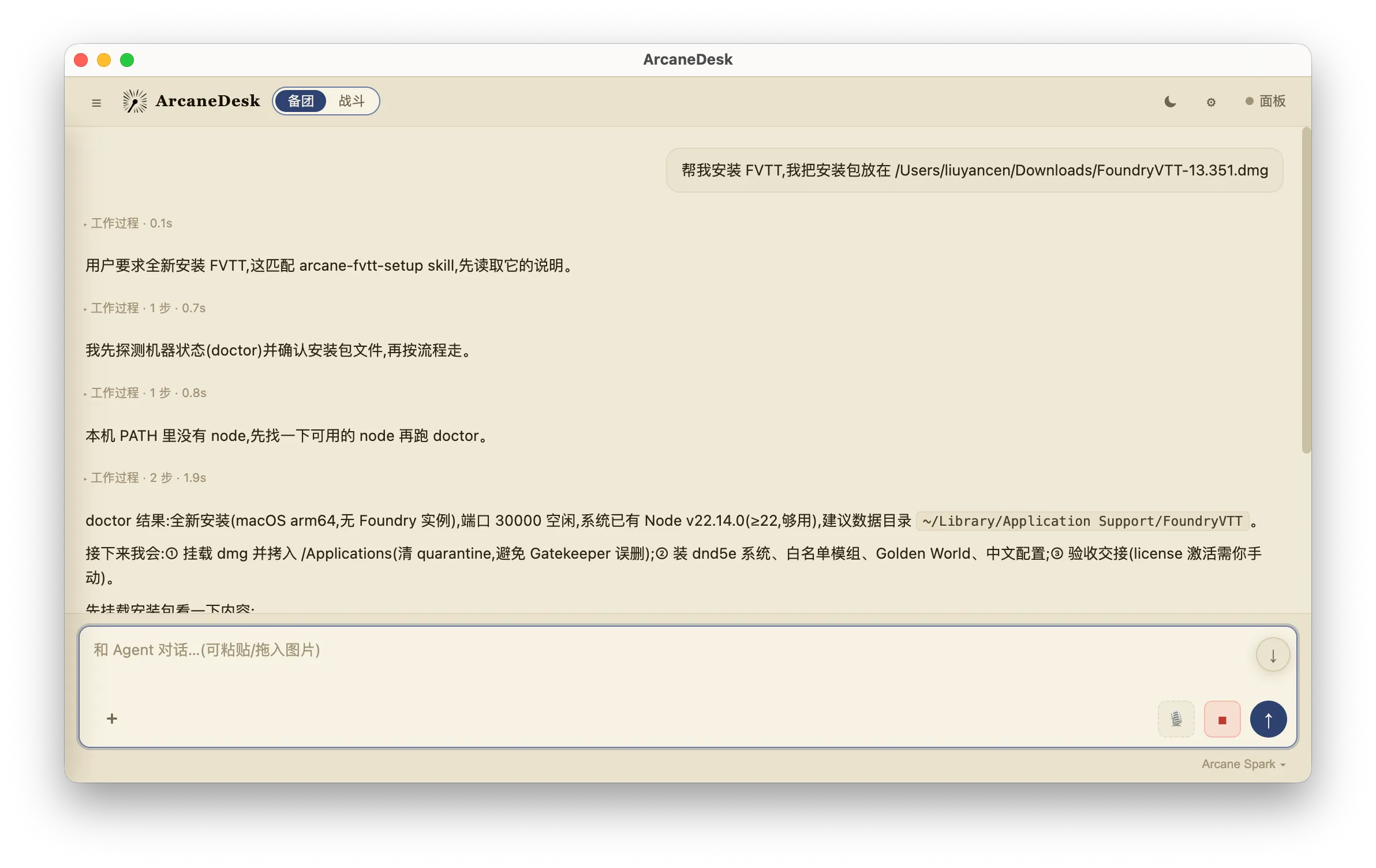
5. Let the agent install FVTT
Send the agent the TIMED URL from step 0, or tell it the path of the FVTT installer you already downloaded, and let it install for you.
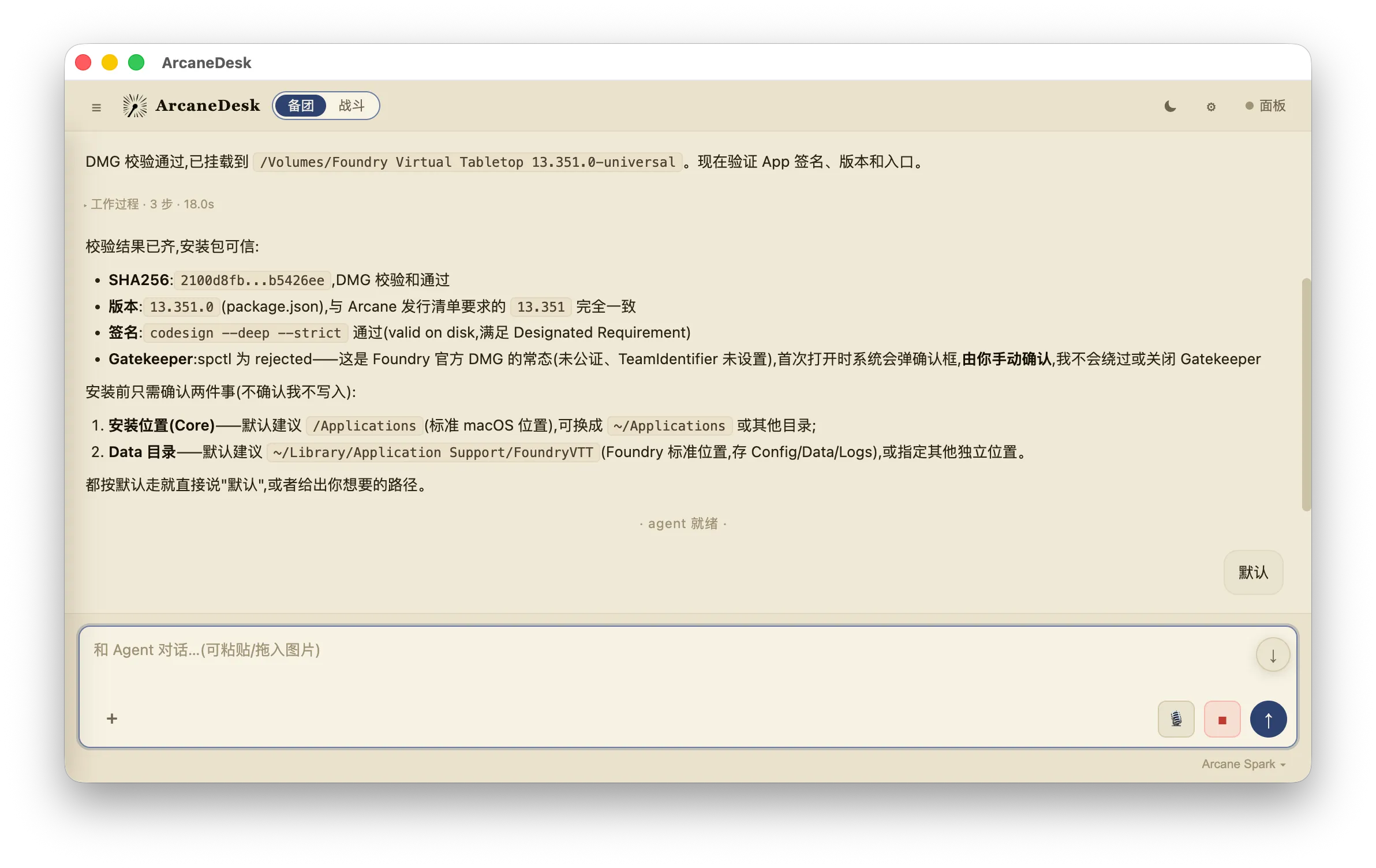
6. All modules installed by default
Only one confirmation is needed before installation: whether to use the default locations (Core defaults to /Applications, Data defaults to ~/Library/Application Support/FoundryVTT) — just reply “default”.
Once confirmed, all 26 modules in the 5 groups of the release manifest installDefaults are installed automatically, along with the dnd5e system 5.3.3 and the demo world arcane-demo 0.1.1.
core group — combat automation runtime contract (required, 12)
| Module | Version | Purpose |
|---|---|---|
| midi-qol | 13.0.63 | Combat automation core |
| dae | 13.0.28 | Dynamic active effects |
| times-up | 13.1.9 | Effect expiry management |
| socketlib | 1.1.3 | Networking library |
| lib-wrapper | 1.13.5.1 | Module compatibility layer |
| itemacro | 3.0.1 | Item macros |
| ActiveAuras | 0.12.7 | Aura effects |
| ATL | v1.1.1 | Token lighting/visuals |
| auraeffects | 1.5.2 | Aura automation |
| dfreds-convenient-effects | 8.2.5 | Convenient effects |
| lib-dfreds-migrations | 1.0.2 | CE migration library |
| lib-dfreds-ui-extender | 2.2.0 | CE UI extension |
own group — Arcane’s own modules (required, 3)
| Module | Version | Purpose |
|---|---|---|
| arcane-dnd5e-2014-automation | 0.3.19 | Arcane combat automation |
| arcane-dice-so-nice-dnd5e-fix | 0.1.0 | Dice fix |
| zzzz_arcane_dnd5e_cn | 0.1.3 | Chinese overlay for characters/spells/items |
ui group — beginner-friendly UI (2)
tidy5e-sheet 13.3.0 (enhanced character sheet), foundryvtt-actor-studio 2.9.8 (visual character builder).
fx group — combat animations & 3D dice (about 1.6 GB, 5)
| Module | Version | Purpose |
|---|---|---|
| dice-so-nice | 5.2.5 | 3D dice |
| sequencer | 3.6.11 | Animation sequencer |
| autoanimations | 6.8.5 | Automatic attack/spell animations |
| JB2A_DnD5e | 0.8.8 | Animation asset library (1557MB) |
| dnd5e-animations | 3.2.0 | Extra animation pack |
zh group — Chinese localization (4, auto-added for Chinese conversations)
foundry_chn 13.350 (core UI), 5e_chn 5.3.0 (dnd5e UI), babele 2.9.1 (translation bridge), zzz_mod_chn 13.92 (legacy compatibility).
7. Activate the FVTT license
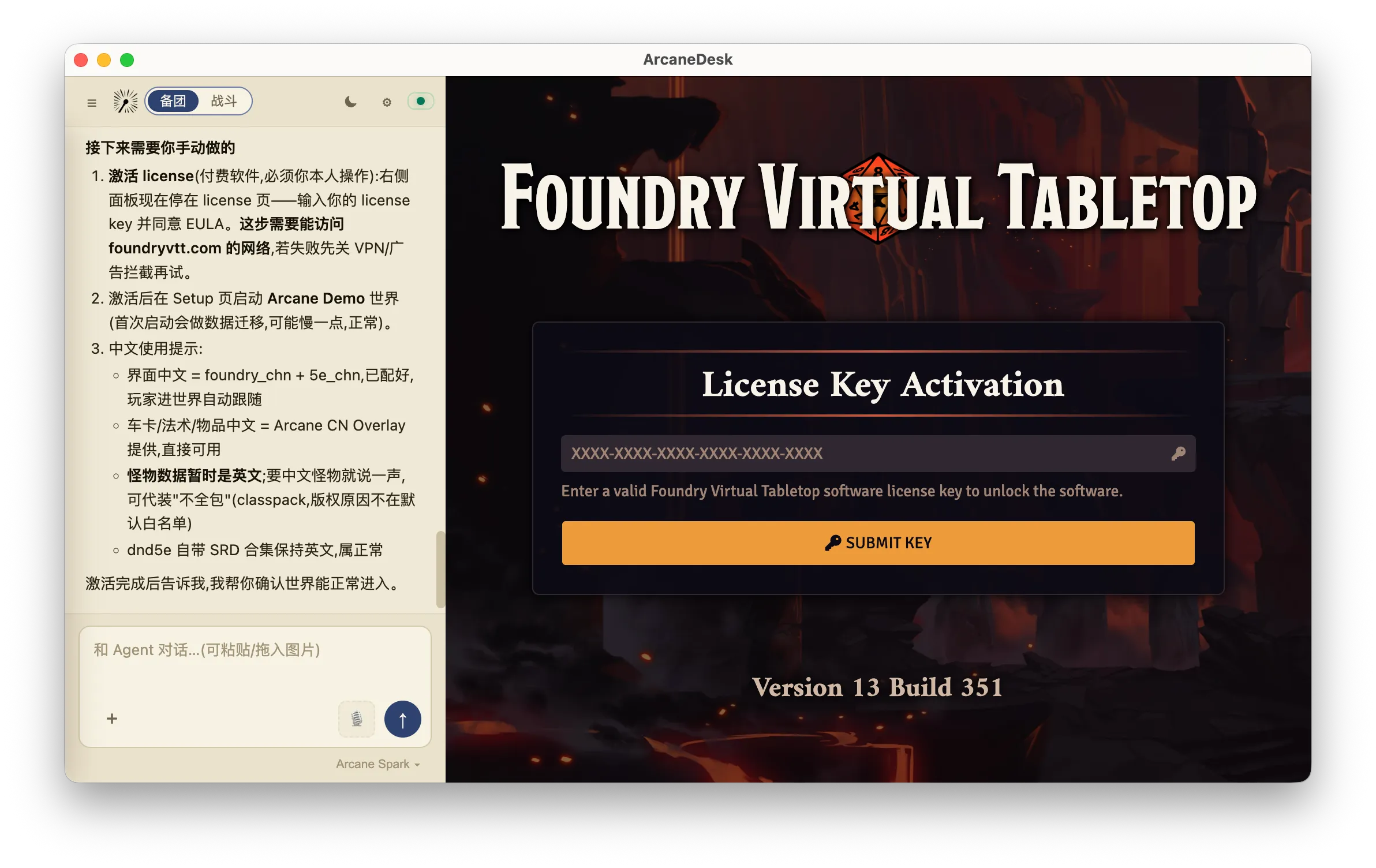
Once FVTT launches it stops at the license activation page. Enter the license key you purchased, accept the EULA, then tell ArcaneDesk that activation is done.
8. Launch the demo world
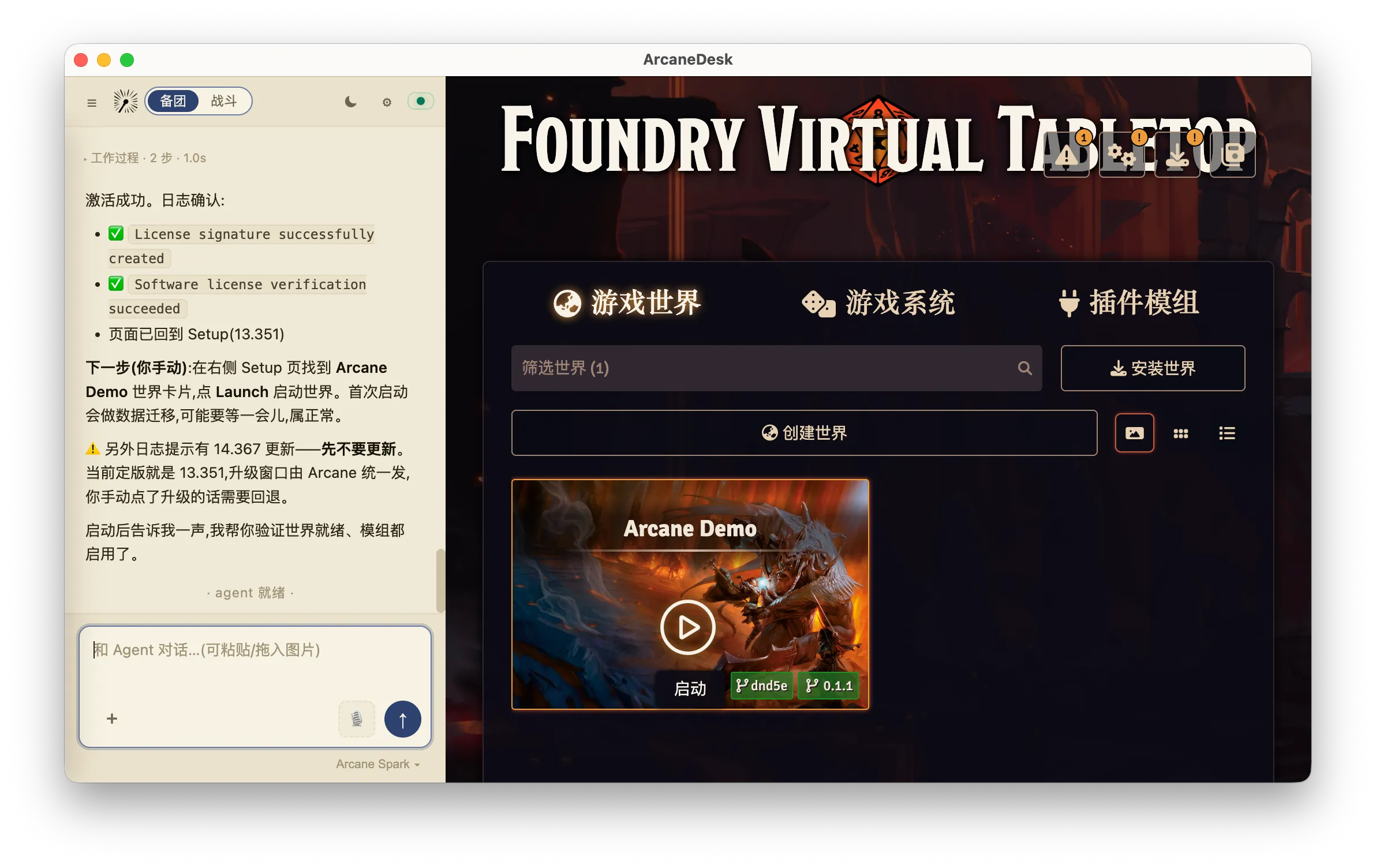
A demo world is included by default. After activation, click Launch on the Setup page — and you can start playing in that world right away!
Next step
Ready to set up a real table — an in-person game on the big screen, or a cloud server for online play? See the Setup Guide.