Want to run FVTT?Here's what you need.
Pick your table style
In-Person
You and your players share one LAN, with a spare monitor or projector nearby.
Install FVTT locally
Follow the getting-started guide — nine steps from downloading FVTT to entering the Demo world.
Open the guideCast the map to the big screen
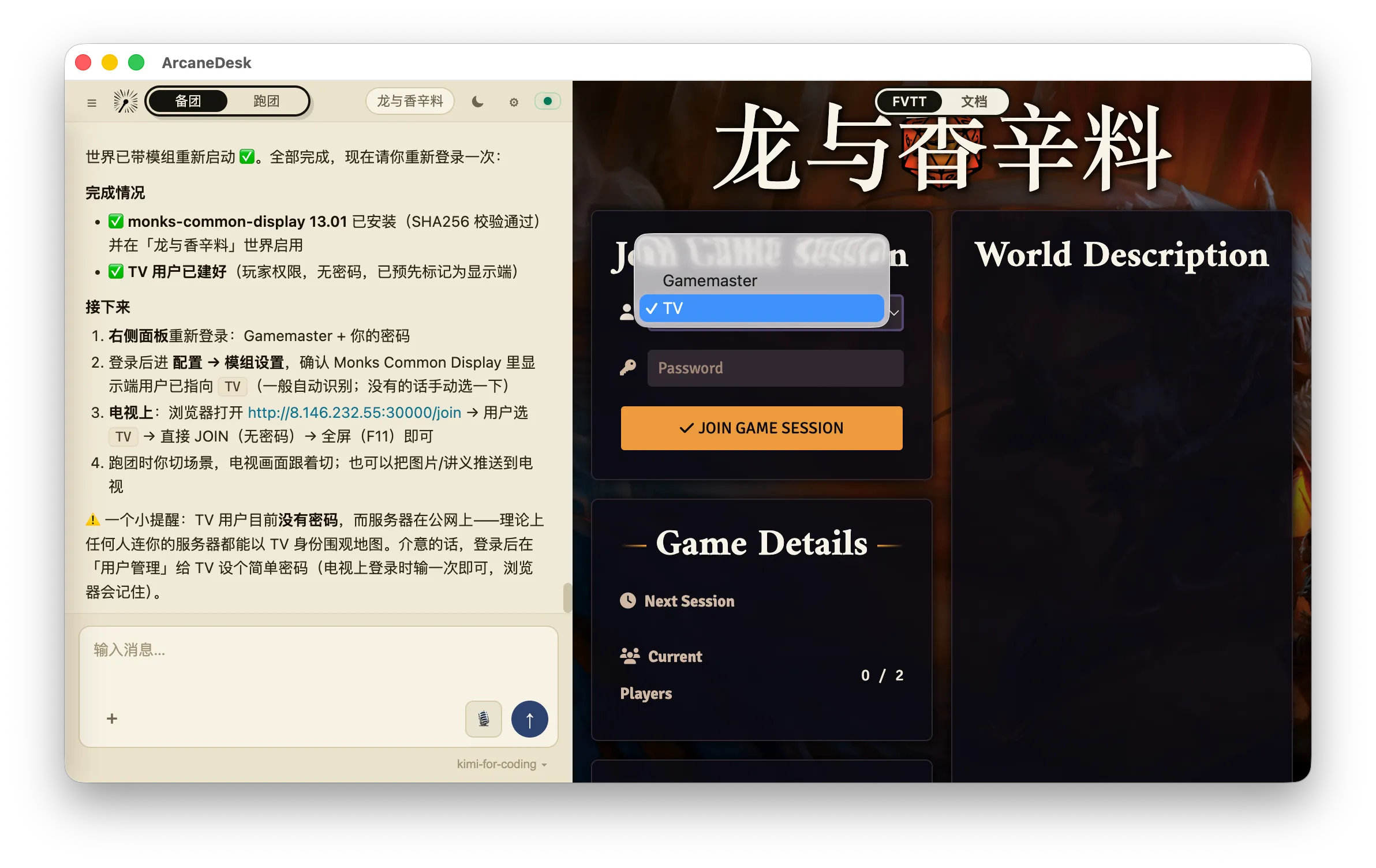
Grab a monitor or projector, then tell ArcaneDesk:
“Install monk's common display and set up the TV user for me”
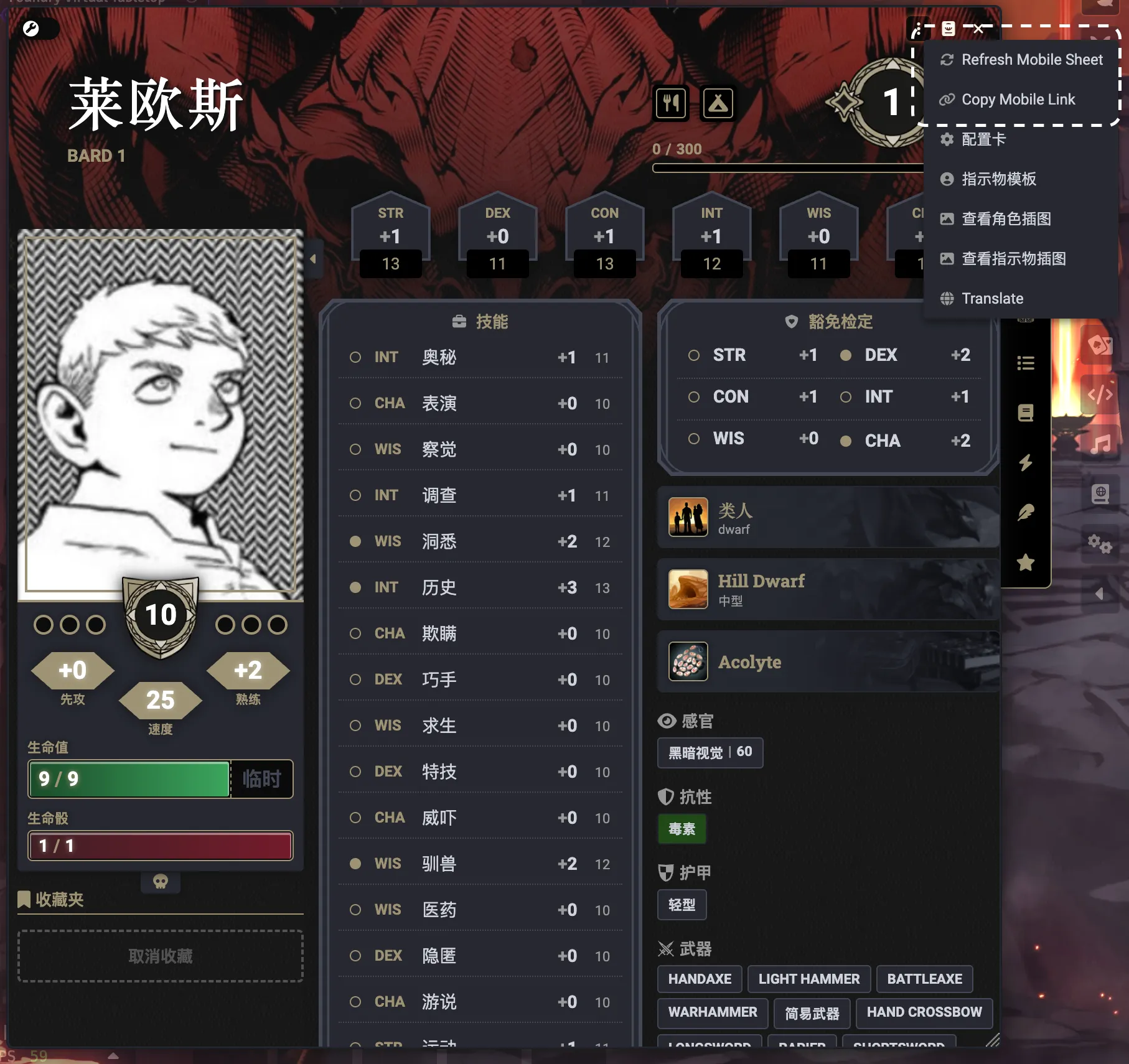
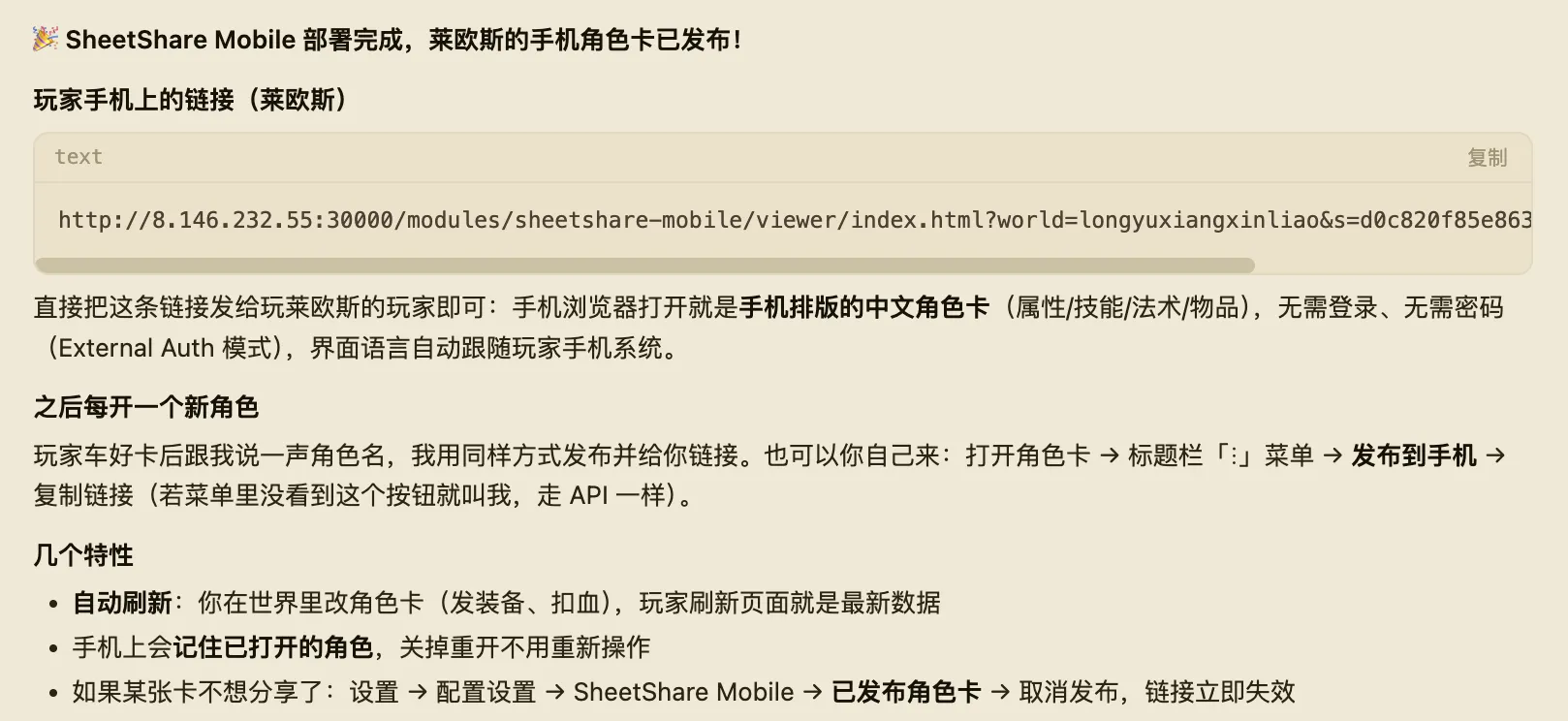
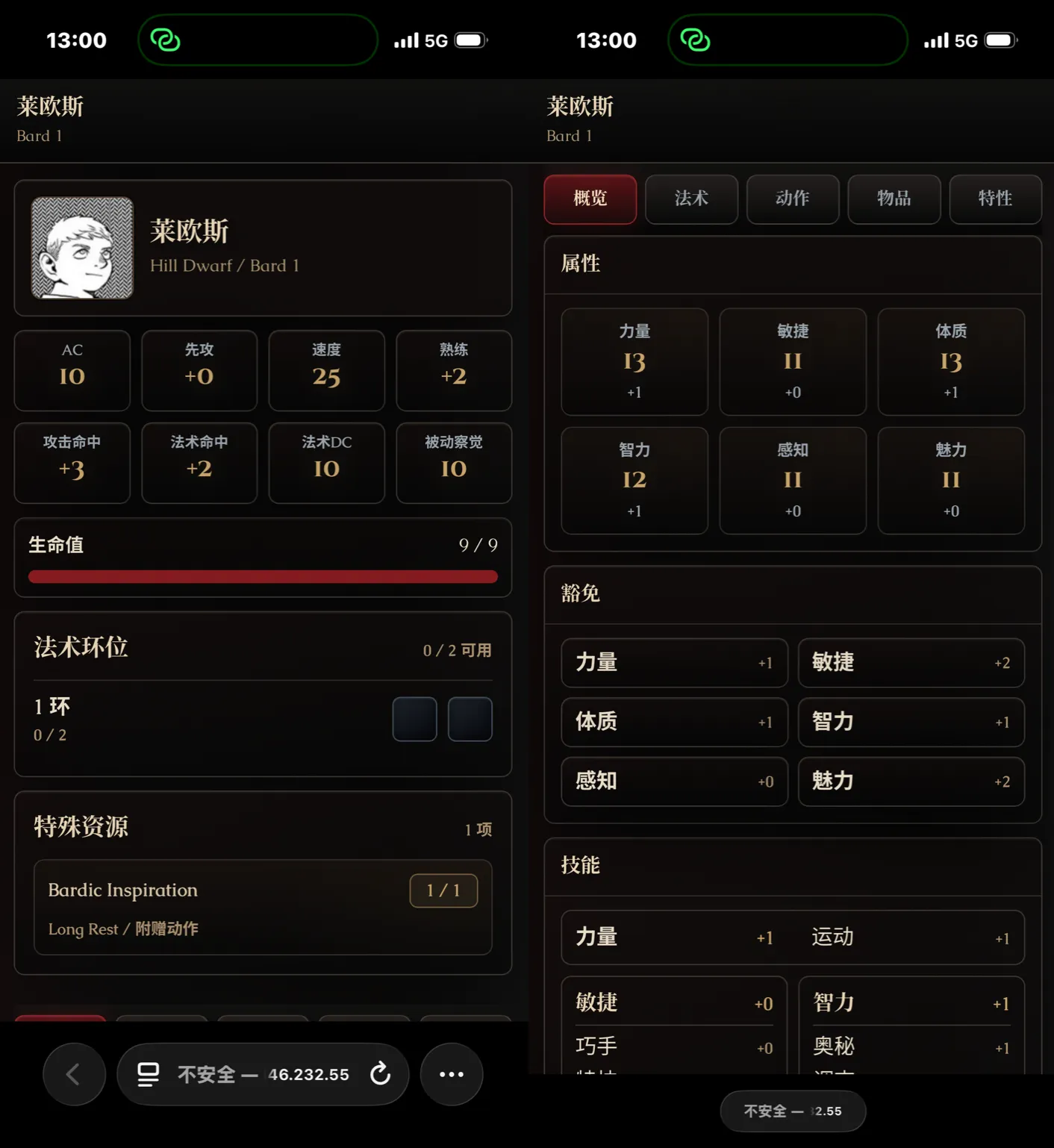
Character sheets on every phone
The DM's computer and the players' phones are on the same Wi-Fi. Tell ArcaneDesk:
“Install sheetshare so every player can see their character sheet on their phone”
Online
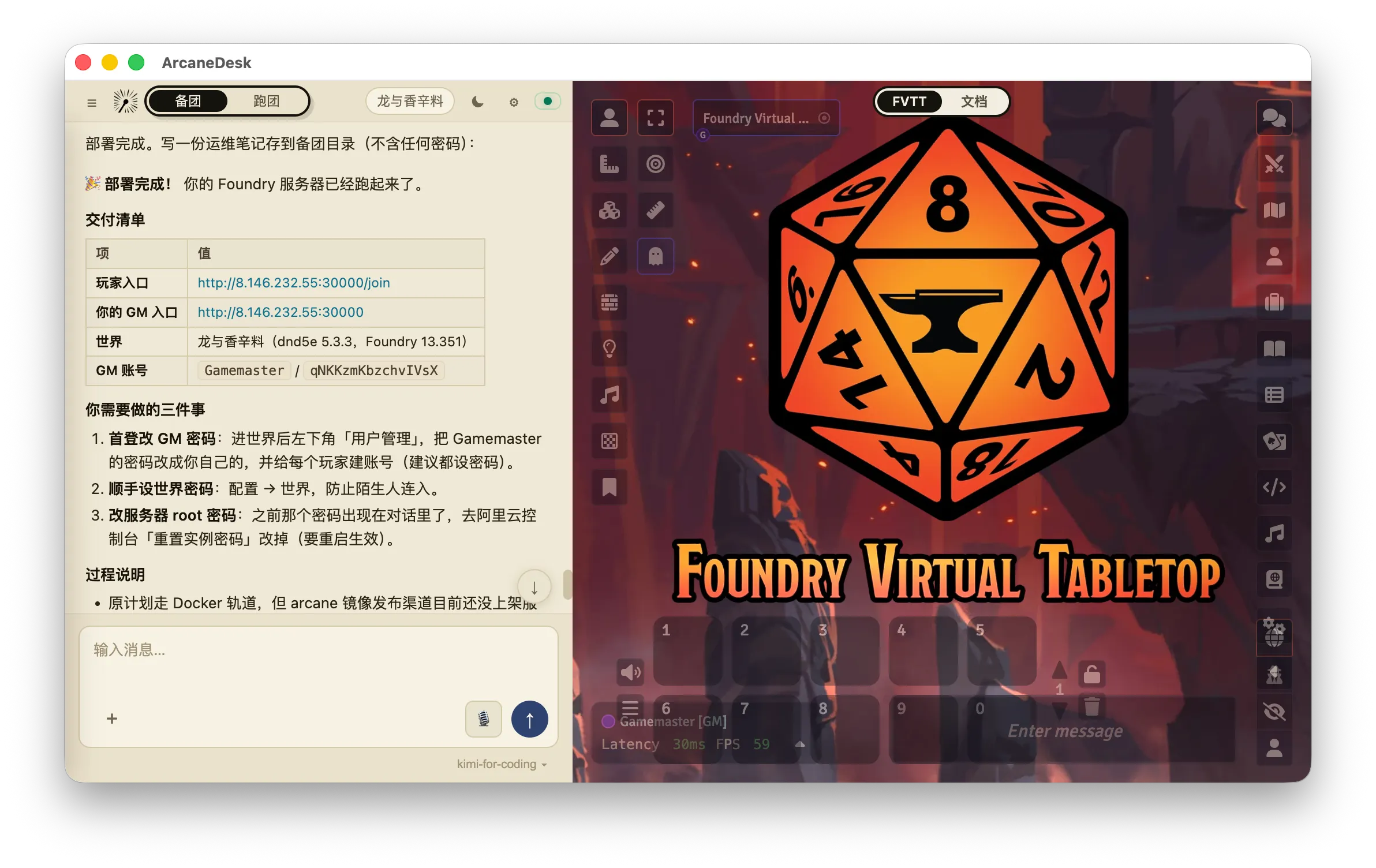
Mostly play online? Buy a cloud server — ArcaneDesk deploys FVTT onto it and players connect from their browsers.
Buy a server
Enter through the Alibaba Cloud deals page; we recommend the Lightweight Application Server (2 vCPU, 2 GB).

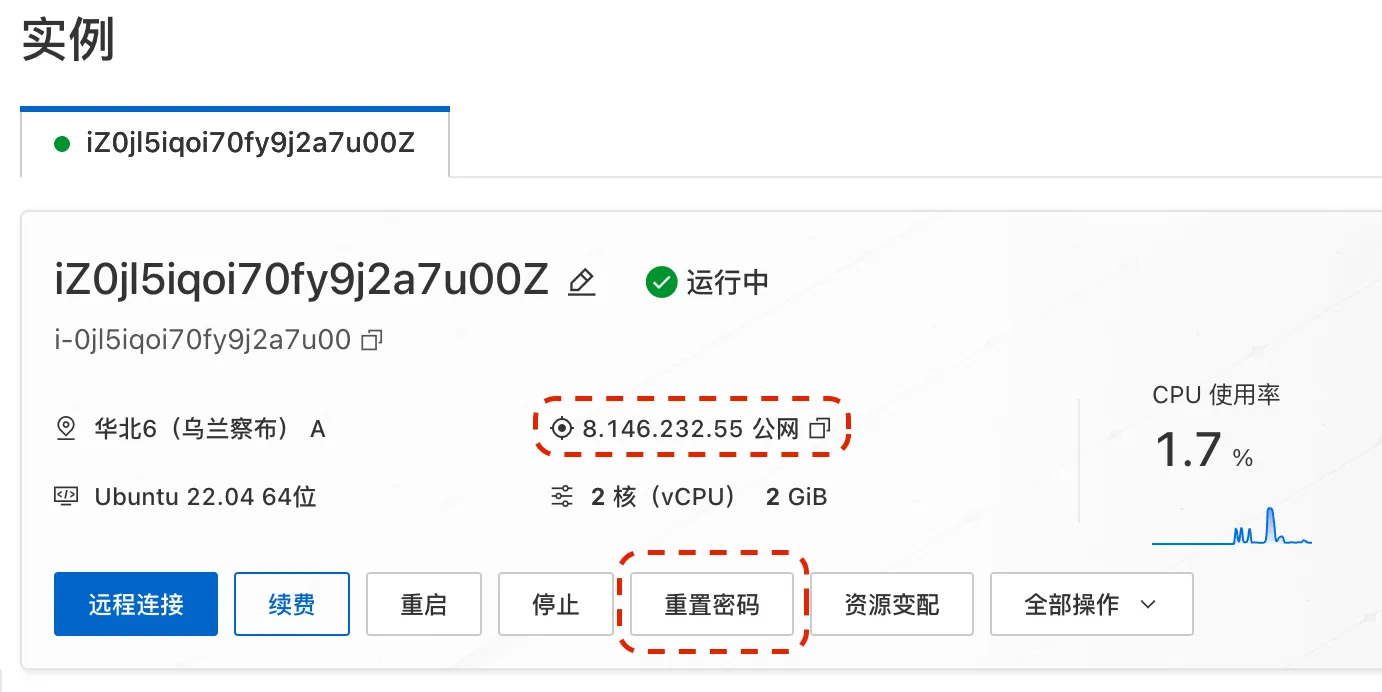
Hand the server to ArcaneDesk
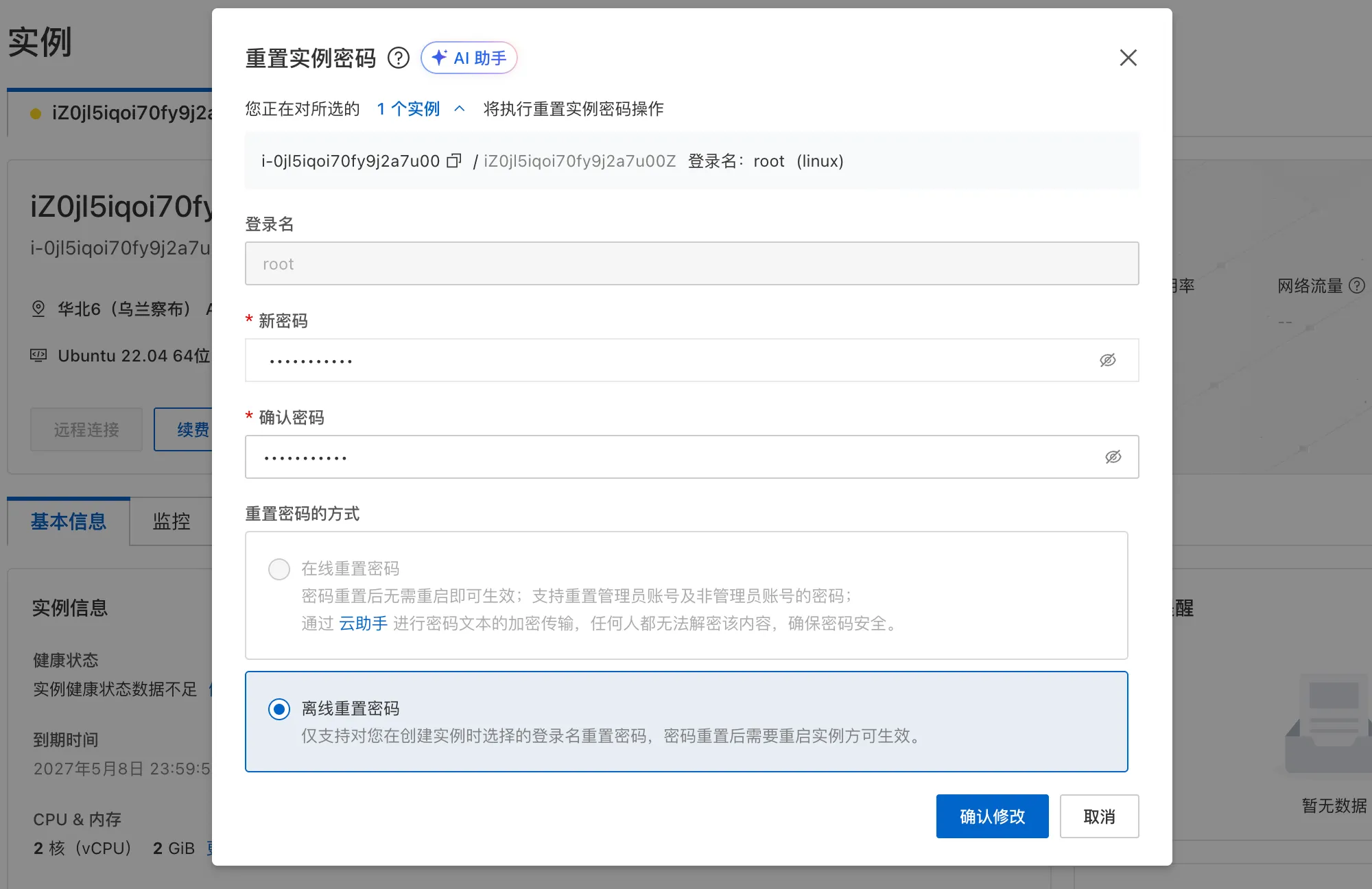
Set a password via「Reset Instance Password」in the console, then tell ArcaneDesk:
“Deploy FVTT on my server — the IP is XXX, the username is root”
Finish SSH access, open the port
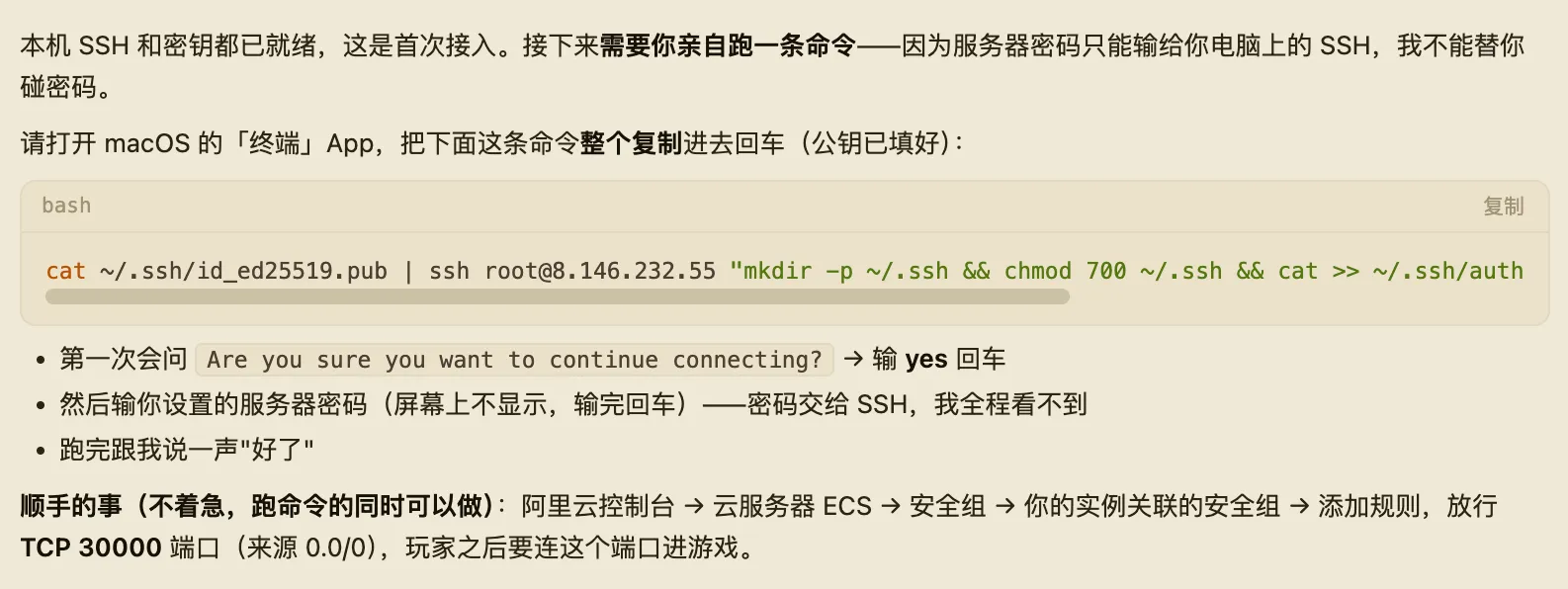
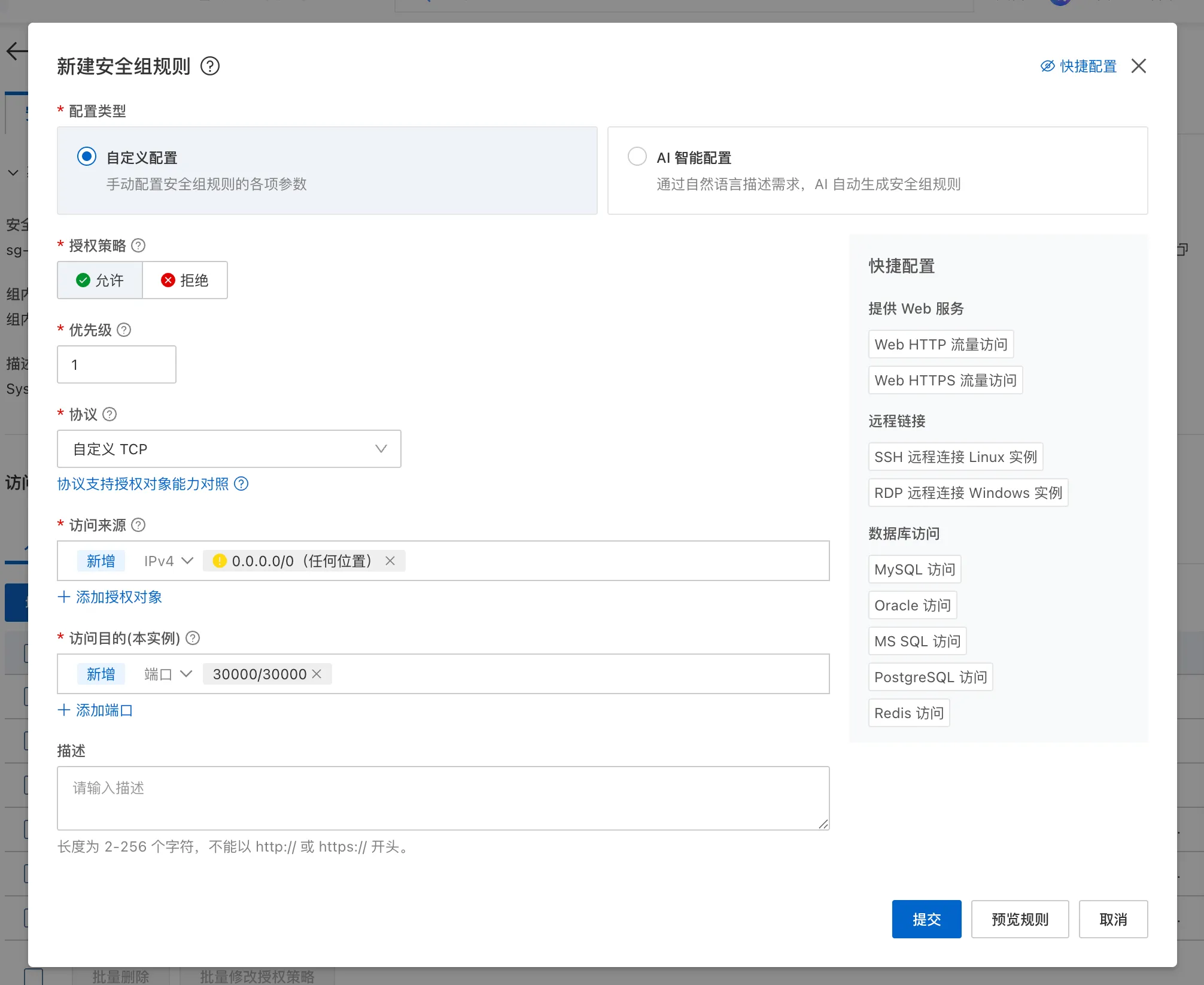
ArcaneDesk will have you run one command in your own terminal and type the server password — the password goes only to SSH; ArcaneDesk never sees it. While you're at it, open the port in the security group; players will use it to join the game.
Provide the FVTT installer
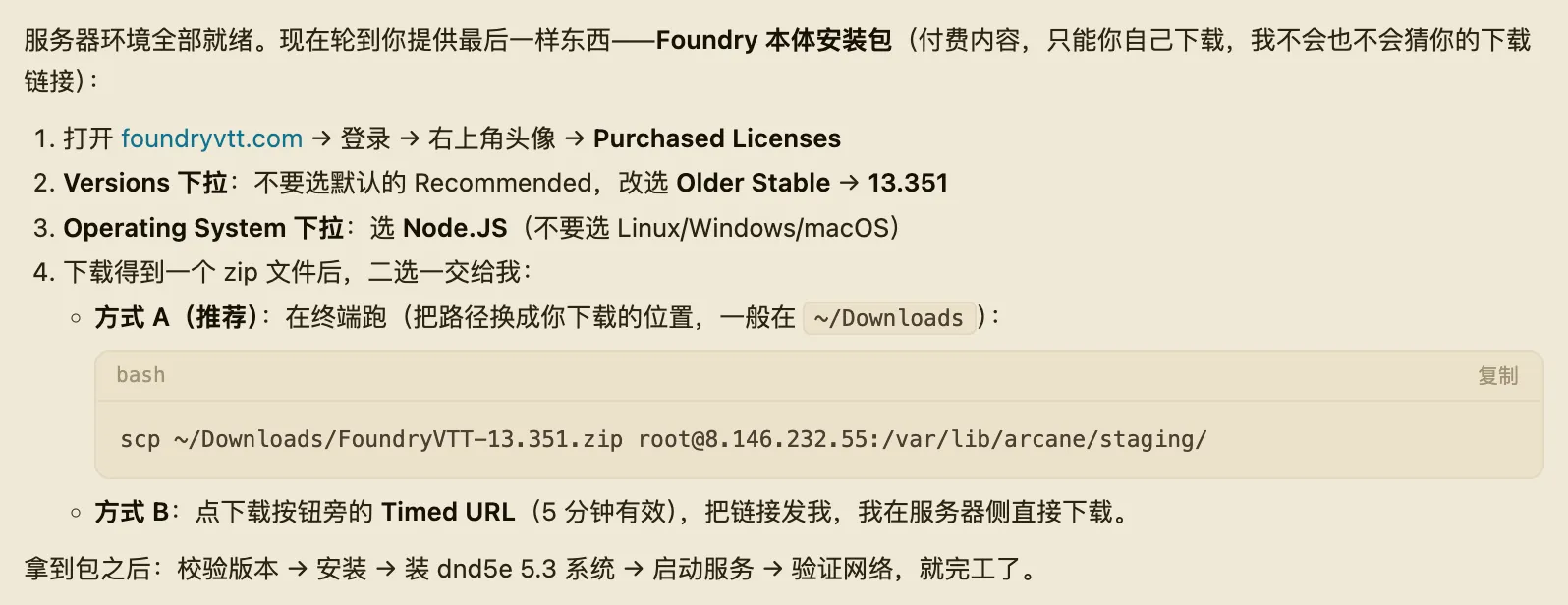
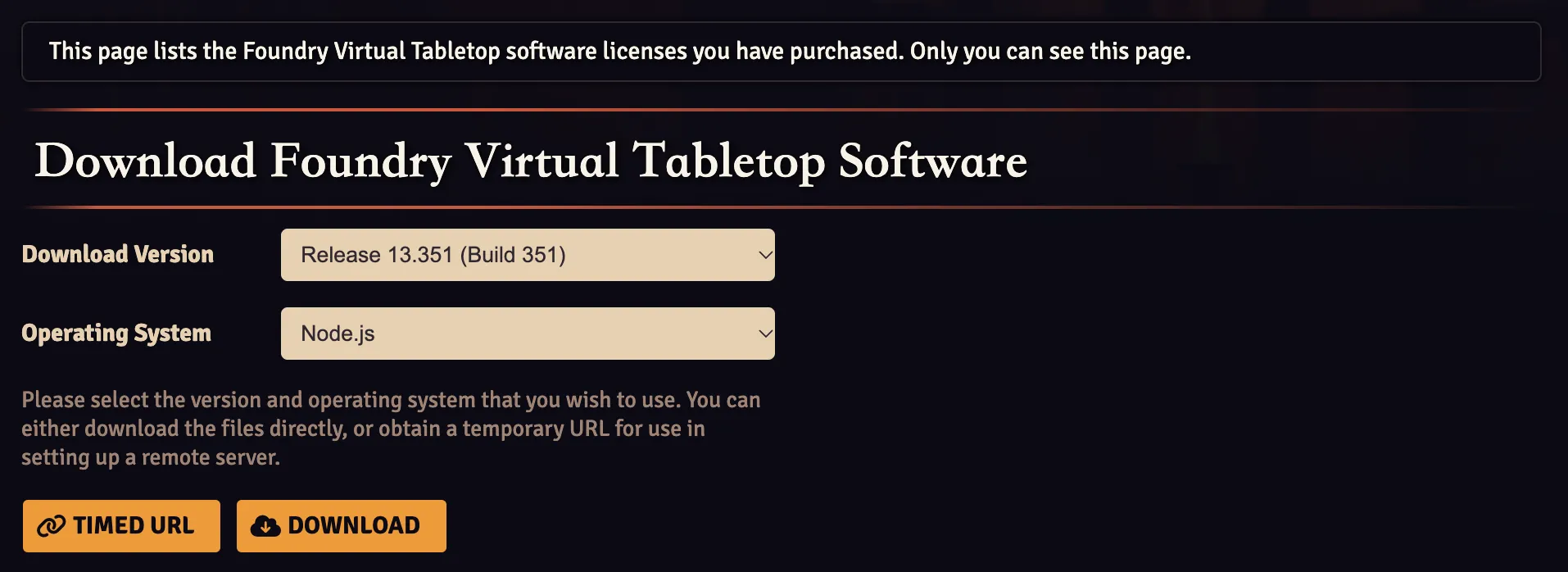
Once connected, ArcaneDesk asks for the FVTT installer. On the official download page, set Download Version to Release 13 and Operating System to Node.js, then hand over the TIMED URL.
Activate the license key
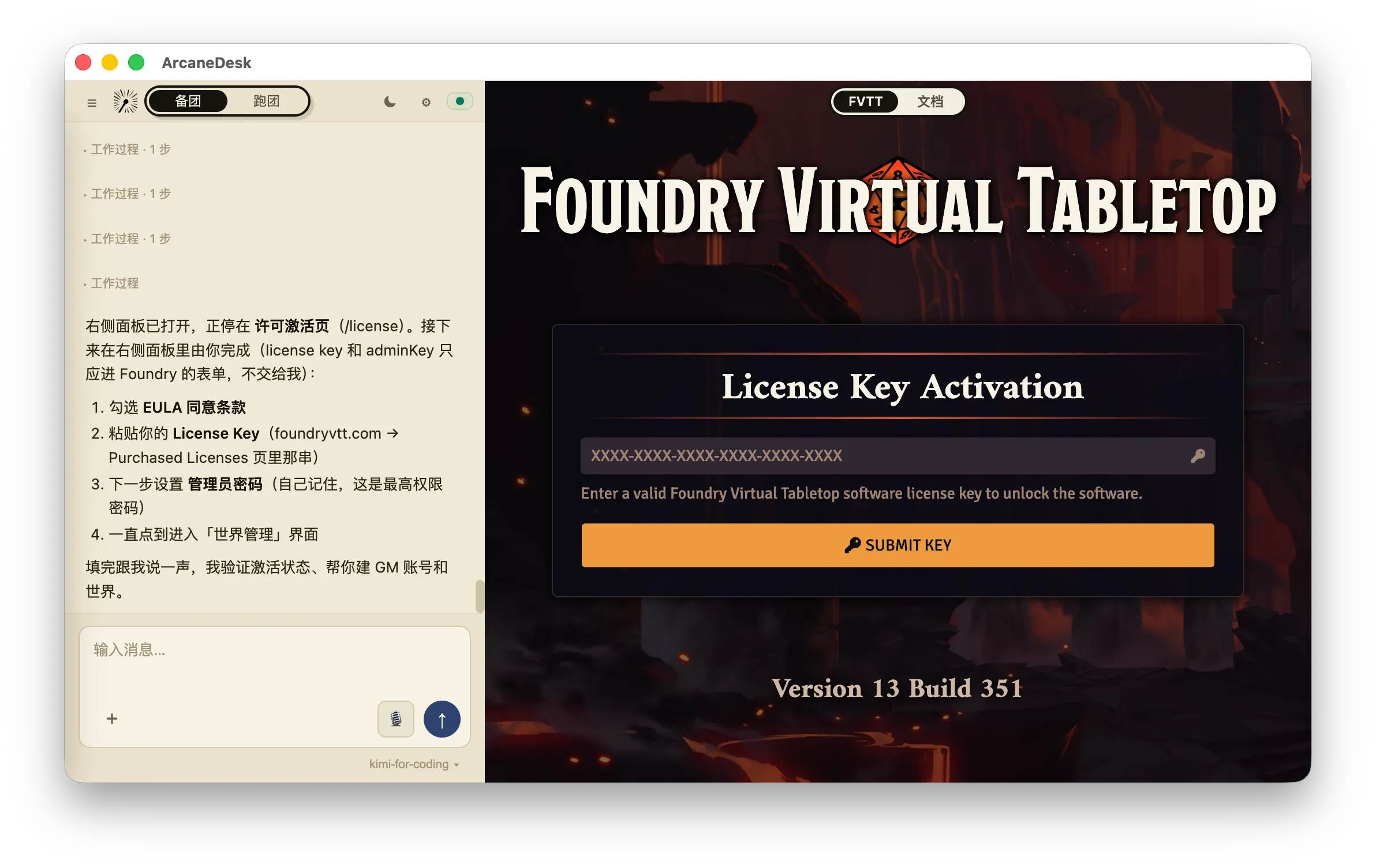
After deployment, enter your License Key on the FVTT setup screen.
Done
ArcaneDesk creates your world automatically — URLs and the GM account delivered in one go.